License Activation
Pro Feature
License activation and deactivation apply to ncSender Pro only. The Community edition does not require a license.
ncSender Pro is licensed per machine. After installing the Pro edition, you'll need to activate it using the Installation ID that was emailed to you after purchase. If you later move to a different machine, deactivate from the current device first, then activate on the new one.
Activating ncSender Pro
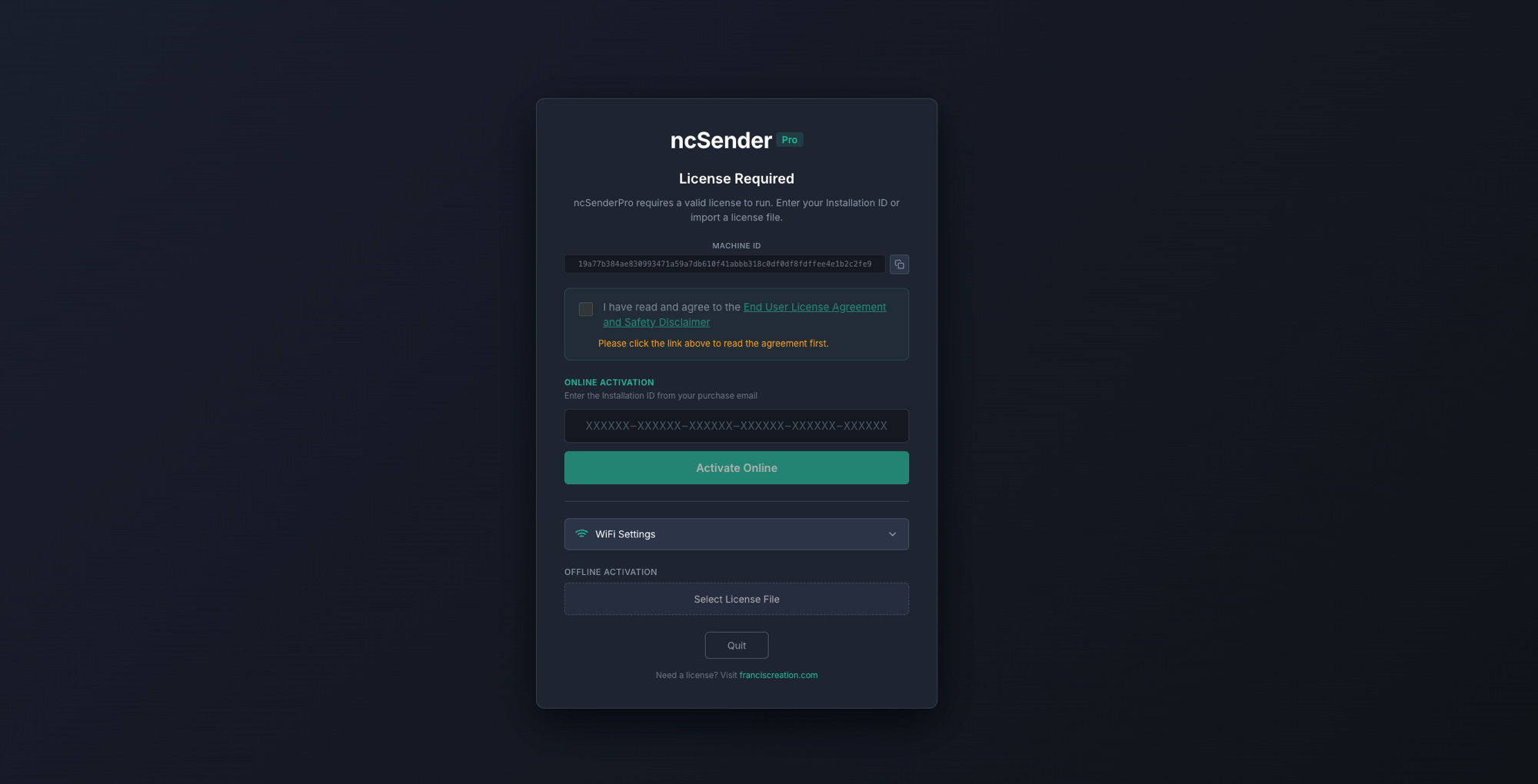
When you launch ncSender Pro for the first time on an unlicensed machine, the License Activation screen appears automatically.
Steps
- Read the End User License Agreement by clicking the agreement link on the activation screen, then check the agreement box.
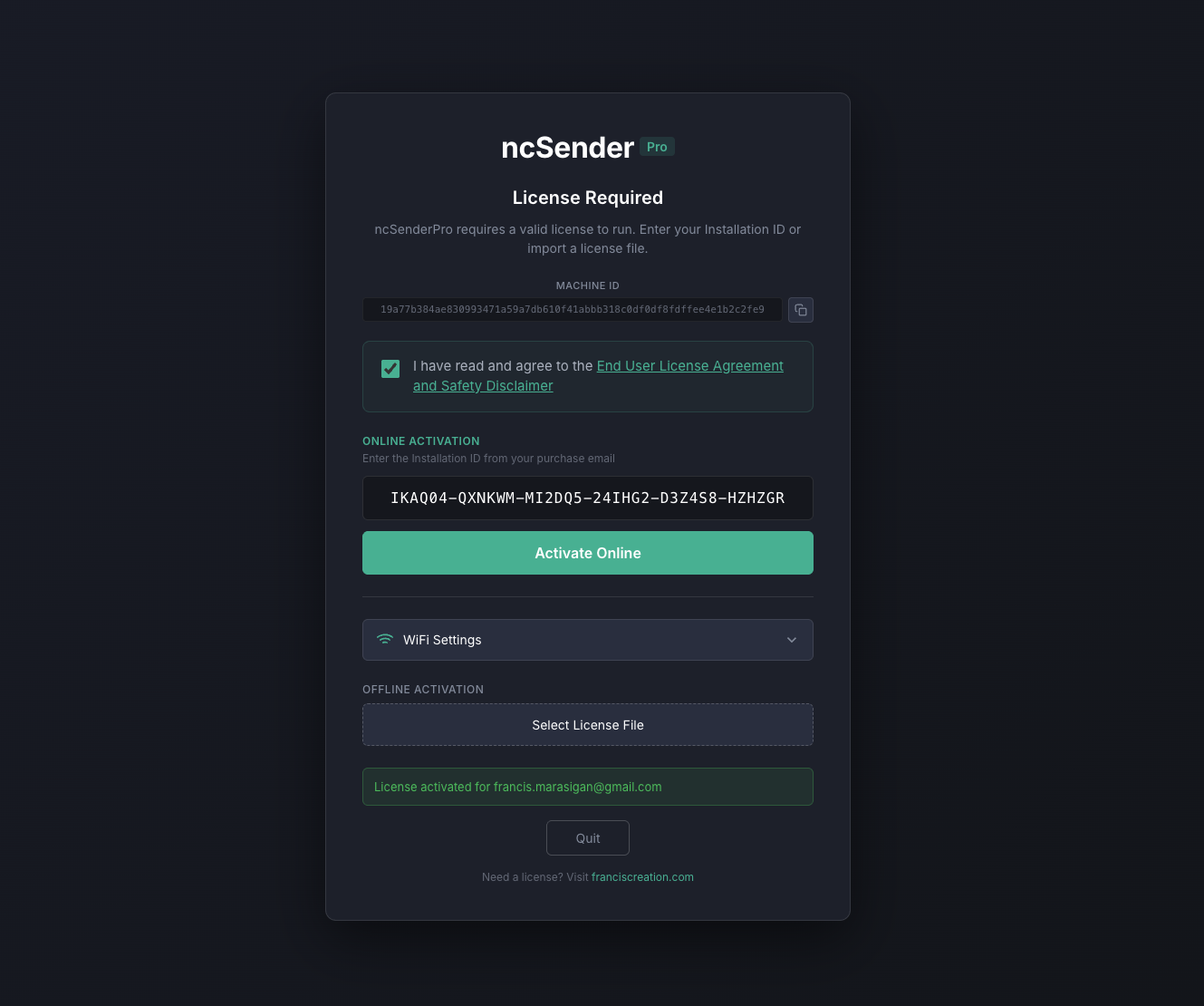
- Paste your Installation ID into the input field. The ID is a 36-character code (formatted in six groups of six, separated by dashes) that you received in your purchase email.
- Click Activate Online. ncSender Pro will contact the licensing server, bind the license to this machine, and unlock the Pro features.
Internet Connection Required
Online activation needs network access to franciscreation.com. If your CNC PC is offline, contact support to arrange an offline license file you can import using Select License File on the same screen.
Activation Limit
Your Installation ID is meant for use on one machine at a time, and can be moved between up to 3 different machines in total. That gives you room to transfer the license if your machine breaks, you upgrade hardware, or you switch PCs.
Re-activating on a machine you've activated before doesn't count against the limit — for example, after an OS reinstall or a hard-drive swap on the same PC.
If you run out of activations: email support@franciscreation.com with your License ID and we'll reset your count so you can activate on new machines again.
Viewing Your License
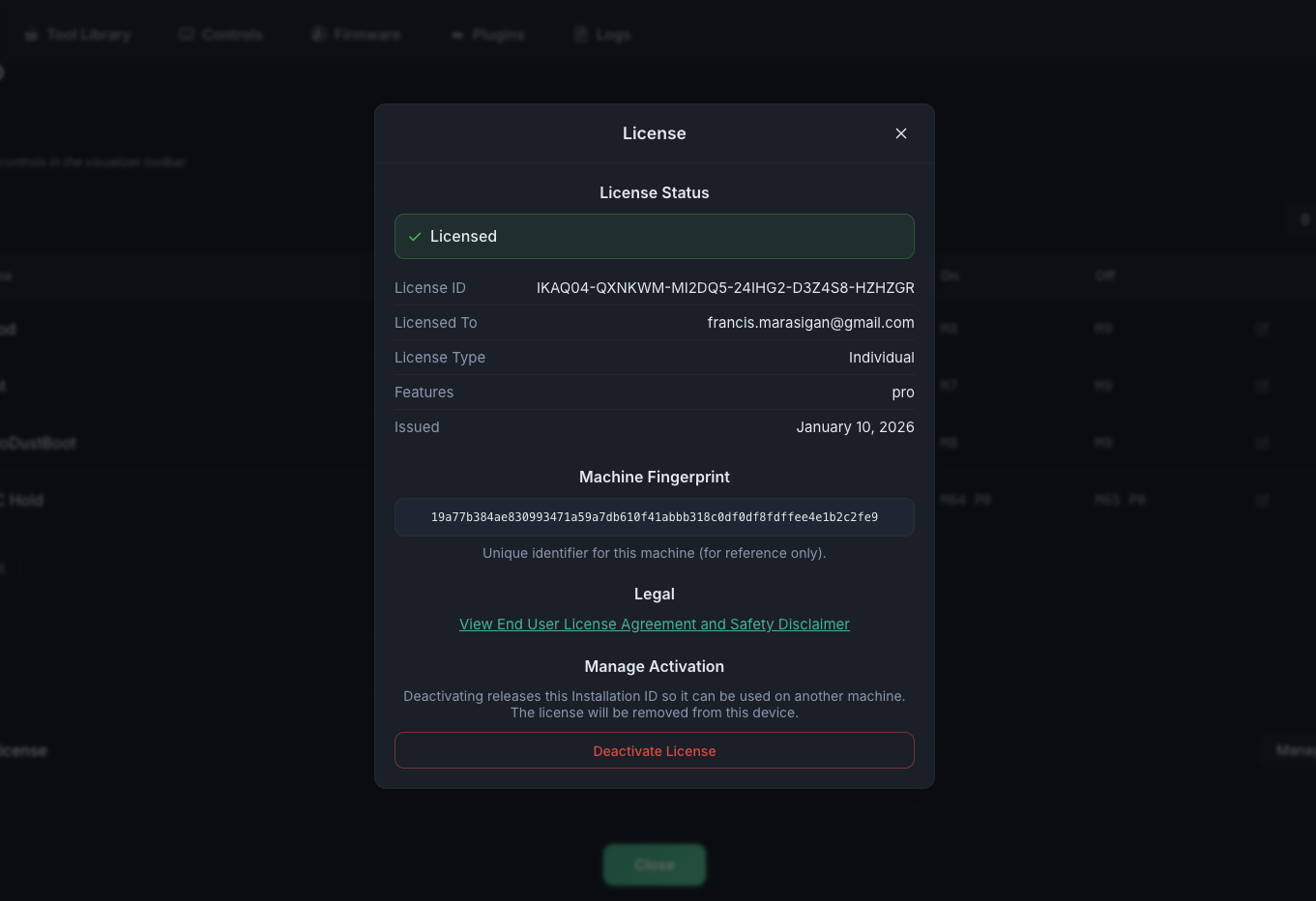
Once activated, you can review your license details any time:
- Open Settings from the toolbar.
- Click Manage License.
The License dialog shows the License ID, customer name, license type, included features, issue date, and the machine fingerprint for this device.
Deactivating ncSender Pro
Deactivate when you want to move ncSender Pro to a different machine or stop using it on the current one. Deactivation removes the license from this device and releases the binding on the server so you can re-activate elsewhere.
Steps
- Open Settings → Manage License.
- Scroll to the Manage Activation section at the bottom of the dialog.
- Click Deactivate License.
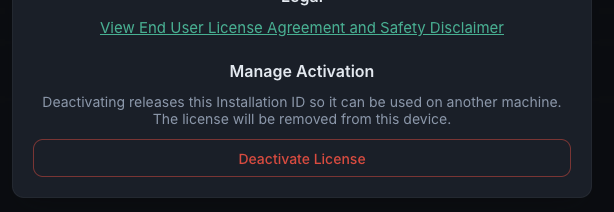
- A confirmation dialog appears explaining what will happen. Review it carefully, then click Deactivate to confirm.
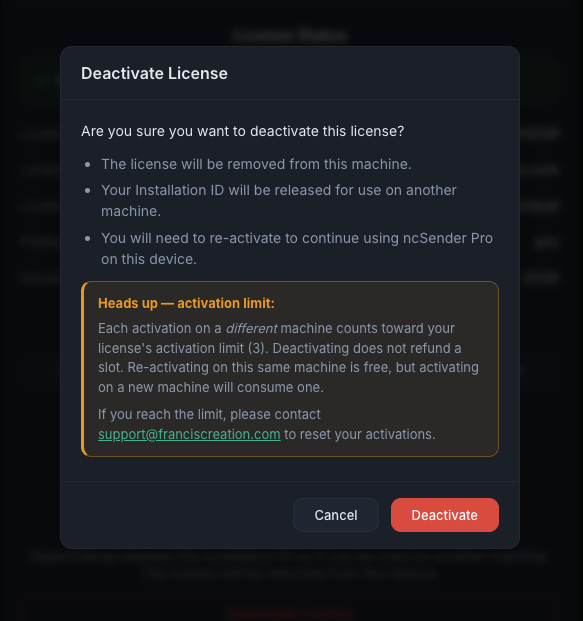
- ncSender Pro contacts the licensing server, removes the local license, and reloads — you'll see the License Activation screen again.
Moving to a new machine still counts
Deactivating releases the license from this machine so you can re-activate elsewhere. Activating on a machine you've never used before counts against your 3-machine limit. Activating on a machine you've used before (for example, moving back to an older PC) does not.
Troubleshooting
- "Not bound to this machine" — The server's binding for this license is on a different device or in a pending state. ncSender Pro will still remove the local license so you can re-activate cleanly.
- "License was not found on the server" — The server has no record of this license. Double-check the License ID; if it looks correct, contact support.
- "Cannot reach the deactivation server" — Network connectivity issue. Verify the machine can reach
franciscreation.comand try again. - Out of activations — Email support@franciscreation.com with your License ID and we'll reset the count.