Macros
Macros let you save frequently-used G-code sequences as reusable buttons.
Creating a Macro
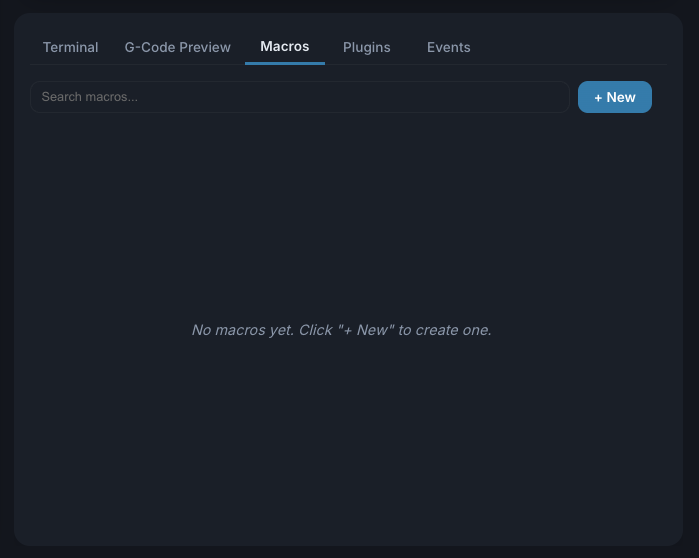
- Go to the Macros tab in the console panel
- Click + New to create a new macro
- Enter a Name and optional Description
- Write your G-code in the editor
- Click Save
Each macro is assigned a unique ID in the range 9001-9999.
Running a Macro
You can run a macro in several ways:
- Click the Play button next to the macro in the list
- Type
M98 P<macro_id>in the console (e.g.,M98 P9001) - Include
M98 P<macro_id>as a line inside a G-code file - Assign it to a custom button or event
When ncSender sees M98 P<id>, it looks the macro up in your library,
expands its body inline, and streams the resulting G-code to the
controller. The controller never receives the M98 itself — it just
sees the expanded commands.
Nested Macros
Macros can call other macros. A macro body that contains
M98 P9002 will, at run time, splice in the body of macro 9002.
This works to any depth up to 16 levels.
ncSender also detects recursive calls (a macro that ends up calling itself, directly or through a chain). The job is aborted with an error like:
This protects you from accidentally writing a macro loop that would never finish.
Controller Macros (Pass-Through Mode)
By default ncSender intercepts every M98 and expands it from its
own macro library. If your controller has its own subprogram support
(for example a grblHAL board with an SD card holding .macro files),
you may want the controller itself to handle M98 instead.
Toggle Use controller macros at the top of the Macros tab to switch modes:
| Toggle | What happens to M98 P<id> |
|---|---|
| OFF (default) | ncSender intercepts, looks up the macro in its library, expands the body inline, and streams it to the controller. Supports nesting + recursion detection (see above). |
| ON | ncSender forwards the M98 to the controller unchanged. Only macros known to the controller itself (e.g. grblHAL SD-card subprograms) will run. ncSender's macro library UI is hidden while this mode is active. |
Use the ncSender library (toggle off) if your controller has no SD-card or doesn't support subprograms. Use controller mode (toggle on) if you want your existing controller-side macros to be authoritative and unchanged by ncSender.
Macro Editor
The macro editor provides:
- Syntax highlighting — G-code keywords are color-coded
- Line numbers — For easy reference
- Multiple lines — Write complex sequences with multiple commands
- Dark/light theme — Matches your app theme preference
Searching Macros
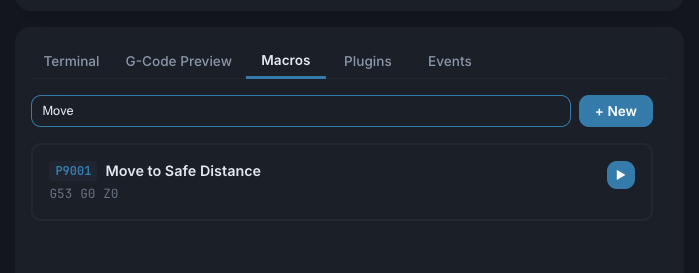
Use the search bar to filter macros by name, description, body text, or ID number.
Example Macros
Go to Machine Zero
Park Position
Probe Z and Zero
Tip
Macros support any G-code your controller understands, including firmware-specific commands like $H (home) or $X (unlock).