Visualizer

The 3D Visualizer is the centerpiece of ncSender, providing a real-time preview of your G-code toolpath and live machine position tracking.
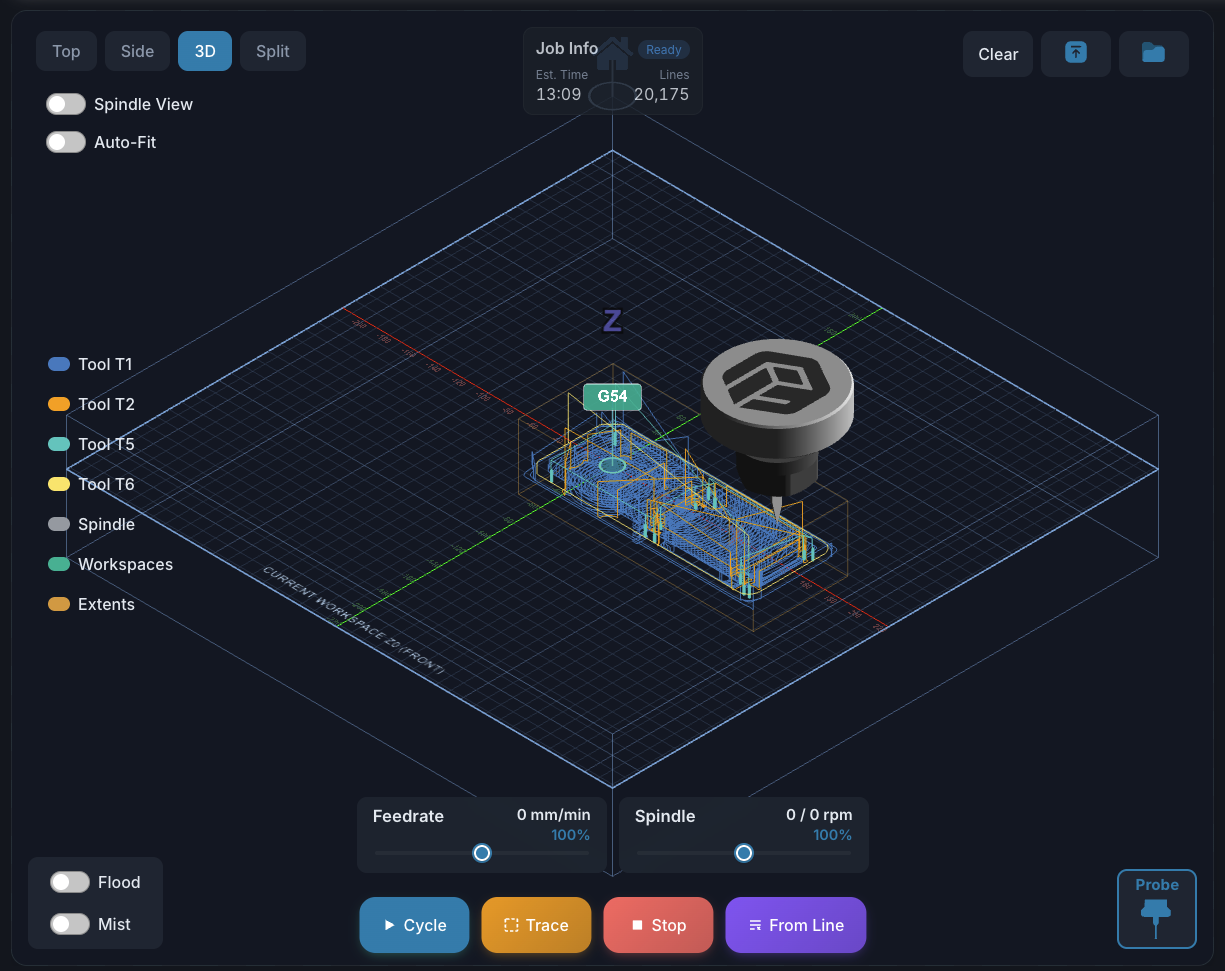
Views
ncSender offers four different viewing modes:
| View | Description | Best For |
|---|---|---|
| 3D | Isometric perspective view with rotation | General use, inspecting toolpaths |
| Top | Orthographic top-down view (XY plane) | Verifying 2D layouts, checking positions |
| Side | Orthographic front-facing view (XZ plane) | Checking depth passes, Z movements |
| Split | Quad-view showing Top, Side, and 3D simultaneously | Detailed inspection |

Navigation
- Pan — Click and drag to move the view
- Zoom — Mouse wheel or trackpad pinch to zoom in/out
- Rotate (3D view only) — Right-click and drag to orbit
Controls
The visualizer surfaces its controls as floating toolbars around the canvas, so the 3D preview stays full-bleed. Each cluster is labeled below.
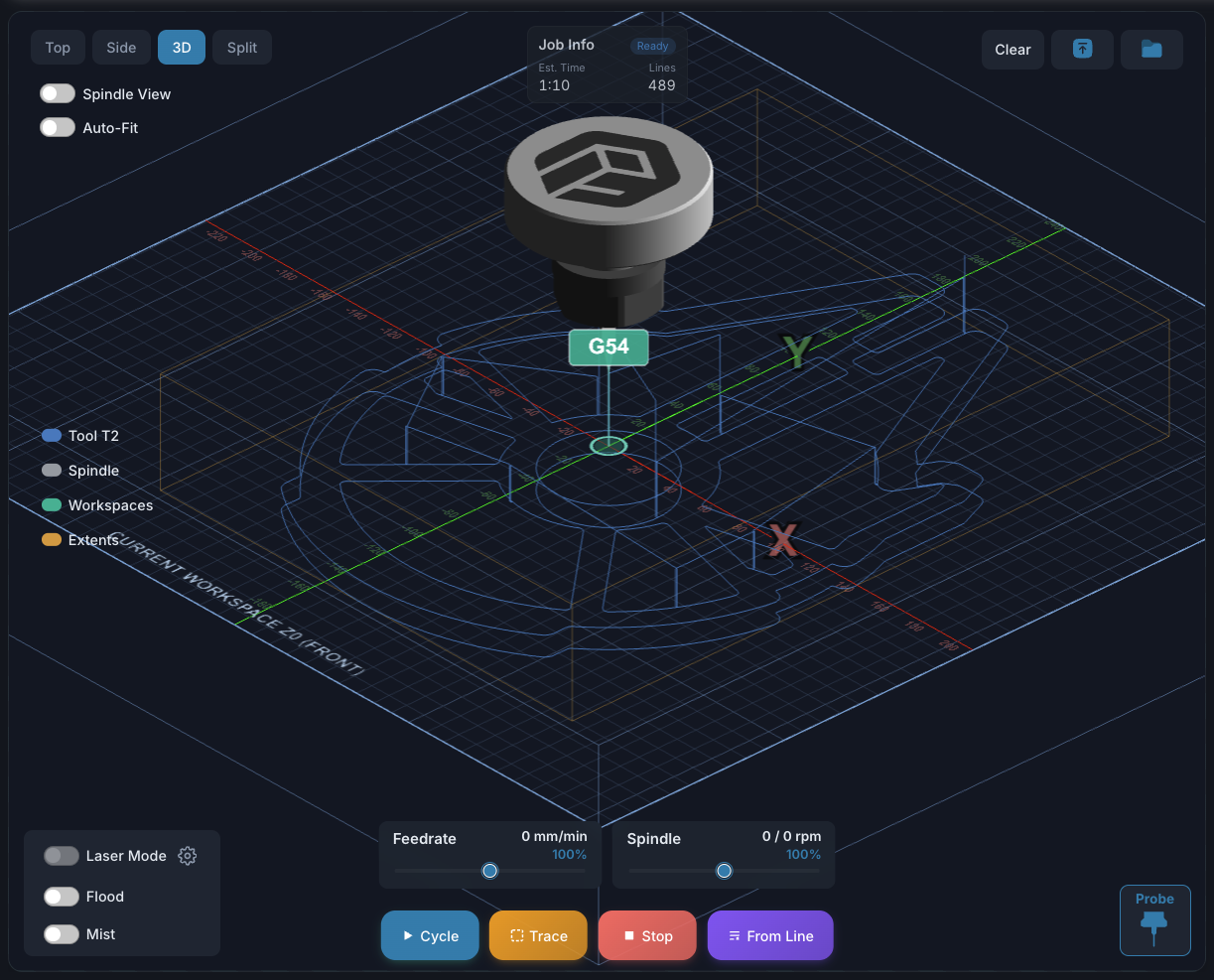
View buttons (top-left)
Switch between Top, Side, 3D, and Split at any time. The active button is highlighted. See Views for what each mode shows.
View toggles (top-left)
- Spindle View / LaserHead View — frames the camera tight on the moving spindle (or laser head, when Laser Mode is on) so you can watch cuts as they happen. The spindle rotates while active so you can visually confirm direction (CW/CCW).
- Auto-Fit — when on, the camera frames the loaded G-code's bounds. When off, it frames the full grid. Auto-Fit only kicks in when a file is loaded; otherwise the view stays put.
File controls (top-right)
- Clear — drop the currently loaded G-code (only shown when a file is loaded; disabled while a job is running).
- Upload (↑) — pick a
.nc/.gcode/.gc/.ngc/.tap/.txtfile from disk. - Open Folder — browse files stored in ncSender's gcode library.
Job action bar (bottom-center)
- Cycle / Resume — start the loaded program, or resume from Hold. Disabled until you've loaded a file, homed, and cleared any alarms.
- Stop — abort the current job. Sends a soft-reset to the controller.
- Trace — dry-run the toolpath with the spindle off so you can verify travel limits and workholding before cutting.
- From Line — start the job from a specific line number. Useful for resuming after a tool change, a power blip, or just for testing a specific section. Double-clicking a line in the G-Code Preview tab also opens this dialog with that line pre-filled.
Probe (bottom-right)
Opens the probing dialog (Z-touch, X/Y edge, corner, center, 3D, etc.). Hidden in Laser Mode. Disabled if no probe is configured or the machine isn't homed.
Overrides (bottom-center)
Two live sliders for Feedrate and Spindle overrides (each 10–200 %, in 10 % steps). Changes are sent as grblHAL real-time commands and take effect mid-program without pausing the job.
Transform Context Menu
Open a context menu on the visualizer to apply quick toolpath transforms, an offset, or move the spindle to a clicked location.
- Mouse — right-click on the canvas
- Touch screen — single-finger long-press for ~500 ms (drift more than ~12 px and the gesture is cancelled)
The menu is disabled while a job is running.

What's available in each view
The items shown depend on the active view:
| Action | Top | Side | 3D | Split |
|---|---|---|---|---|
| Rotate 90° CW / CCW | ✓ | — | ✓ | — |
| Mirror X Axis / Mirror Y Axis | ✓ | — | ✓ | — |
| Offset Material | ✓ | ✓ | ✓ | ✓ |
| Reset to Original (only when the file has been modified by a plugin or a prior transform) | ✓ | ✓ | ✓ | ✓ |
| Move To (jog the spindle to the clicked X/Y) | ✓ | — | — | — |
Why Move To is Top-only
The Top view is the only one where the click maps cleanly to a machine X/Y position. The 3D view's perspective projection makes its X/Y ambiguous, so the option is hidden there to prevent surprise jogs. Move To also requires an active controller connection.
Press Escape or click outside the menu to dismiss it.
Toolpath Rendering
When a G-code file is loaded, the visualizer renders the complete toolpath:
- Rapid moves (G0) — Dashed lines showing non-cutting travel
- Feed moves (G1) — Solid lines showing cutting paths
- Arcs (G2/G3) — Smooth curved paths
- Current position — Animated toolhead (spindle or laser) following execution progress
Toolhead Display
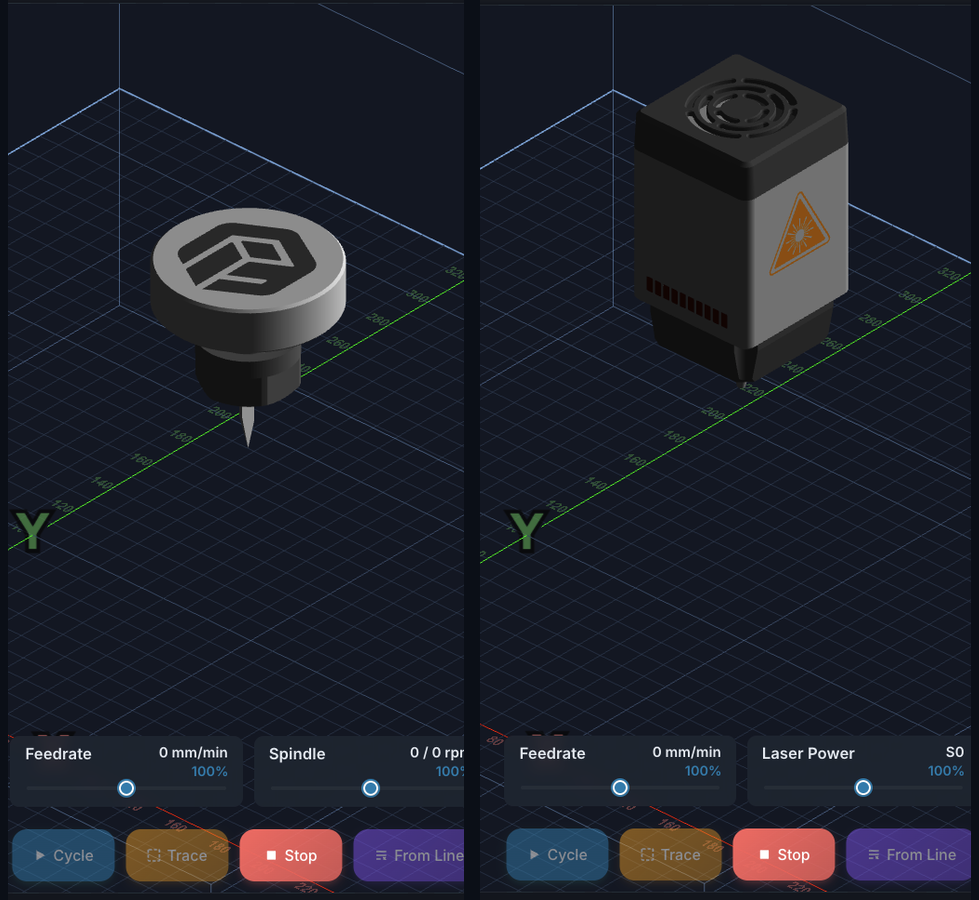
The visualizer shows an animated 3D model at the current machine position:
- Spindle mode — a rotating spindle with collet
- Laser mode — a laser head with a beam reaching the workbed (Pro only)
Toggle Spindle View / LaserHead View in the view toggles to frame the camera on the head so you can watch the cut up close.
Workspace Markers
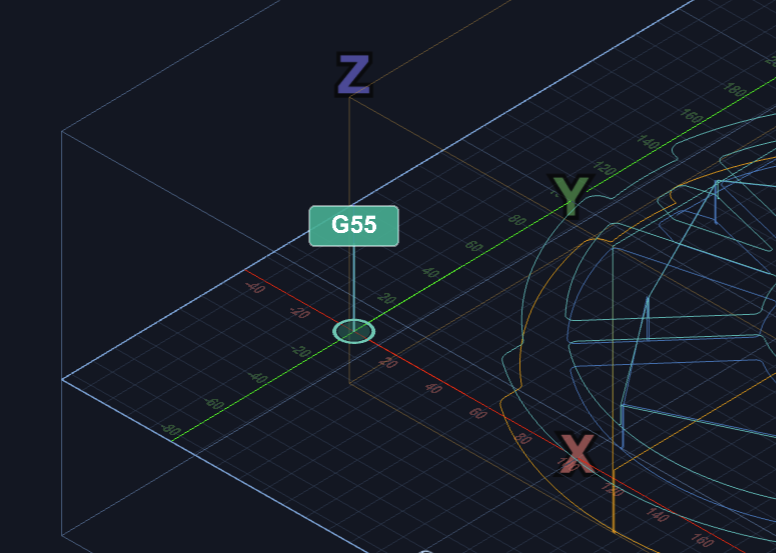
The visualizer displays workspace origin markers for G54 through G59. These show where each coordinate system's origin sits relative to the machine.
- The active workspace is highlighted
- Toggle visibility from the Workspaces item in the right-side legend
- Markers auto-scale with zoom level
Tool Legend
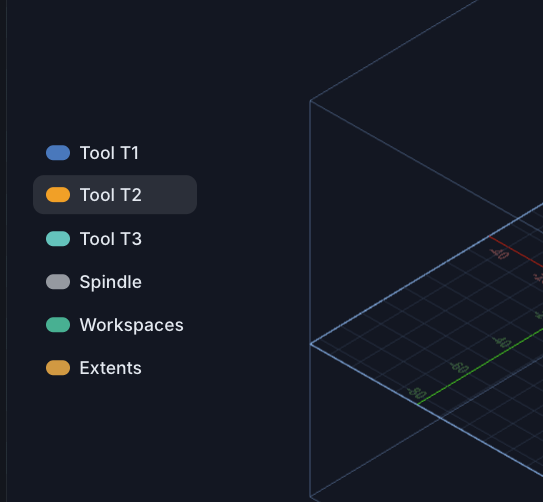
A small legend on the right edge of the canvas lists every element drawn on top of the grid:
- Tool T1, T2, … — one row per tool number used in the loaded program, color-coded to match its paths. Click a row to hide / show that tool's segments.
- Spindle (or Laser in laser mode) — toggle the animated toolhead.
- Workspaces — toggle the G54–G59 origin markers (only shown when more than one workspace has been configured).
- Extents — toggle the toolpath bounding box overlay (only shown when a file is loaded).
The bottom-right area also has a separate row of active tool slots (numbered slots, Manual, TLS, Probe) for changing the active tool — that's covered on the Tool Management page.
Aux Controls
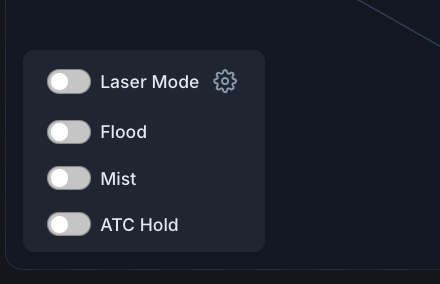
The bottom-left cluster has toggle switches for auxiliary outputs:
- Flood Coolant (M8) — Toggle flood coolant on/off
- Mist Coolant (M7) — Toggle mist coolant on/off
- Custom Aux Outputs — M64/M65 digital outputs (configurable in Settings)
Realtime control
Flood and Mist toggles use grblHAL realtime commands (0xA0/0xA1) that bypass the planner buffer, so you can toggle coolant even mid-program.
Out-of-Bounds Detection
If the loaded toolpath exceeds the machine's travel limits, ncSender displays a warning at the top of the visualizer. This catches the problem before you start the job rather than mid-cut.
Program Execution

During program execution:
- The toolhead follows the current position in real-time
- Completed paths are highlighted
- Progress bar and runtime are displayed at the top
- Feed rate and spindle RPM are shown in the info bar
Resetting modified toolpaths
If a plugin or the transform context menu changed the loaded G-code, the same context menu's Reset to Original item reverts to the unmodified source file.