Installation
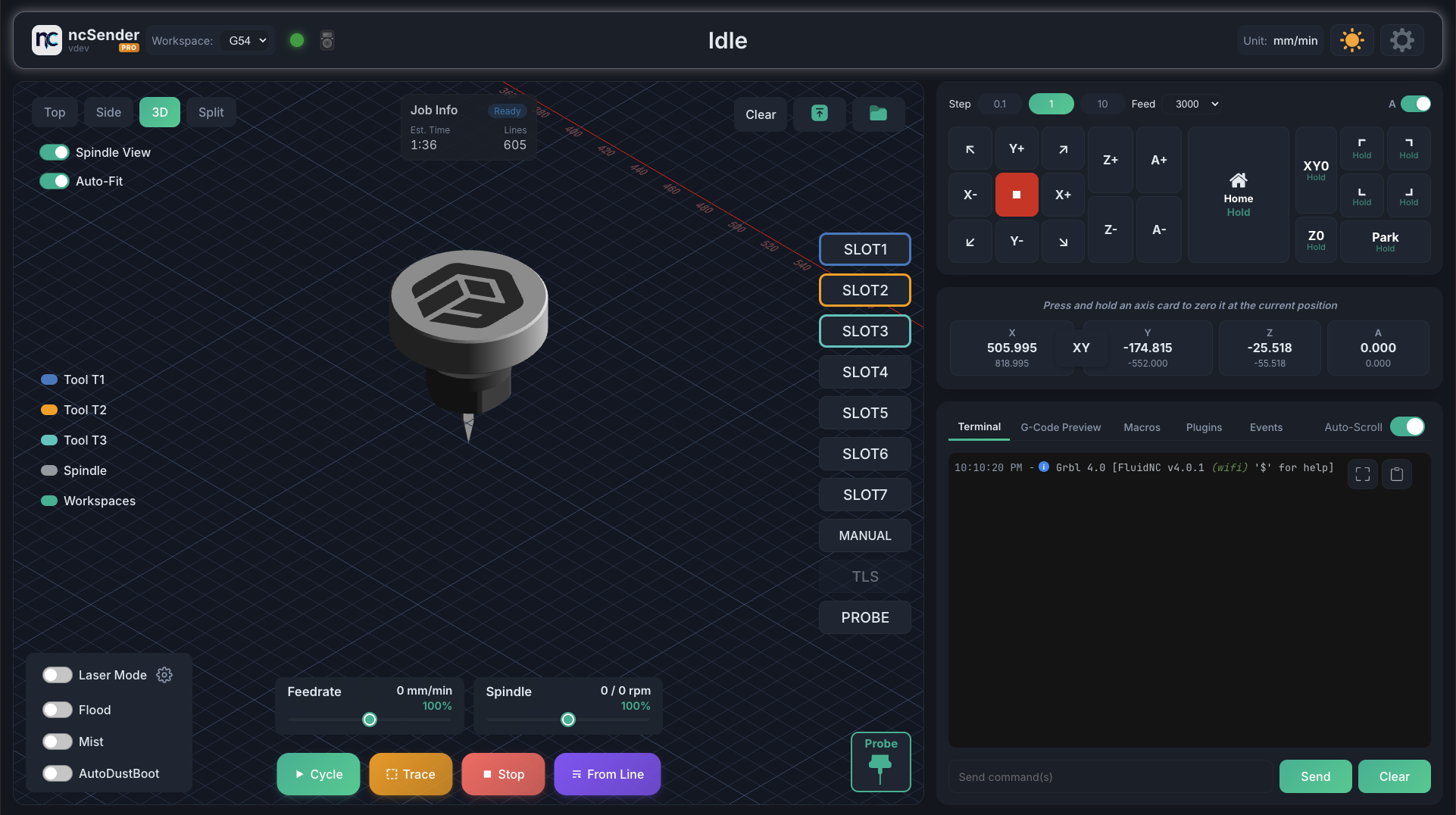
Downloads
Community Edition (Free)
Download the latest release from GitHub Releases.
| Platform | Download |
|---|---|
| Windows x64 | .exe installer |
| macOS (Apple Silicon) | .dmg |
| macOS (Intel) | .dmg |
| Linux x64 | .deb |
| Linux ARM64 (Raspberry Pi) | .deb |
Pro Edition
Download from ncSender Pro Releases.
After installing, see License Activation to unlock the Pro features with your Installation ID.
System Requirements
- Windows: Windows 10 or later (x64)
- macOS: macOS 12 Monterey or later (Apple Silicon and Intel)
- Linux: Ubuntu 22.04+ or Debian 12+ (x64 and ARM64)
Installation Steps
Pro Feature
The pre-built Raspberry Pi 5 OS image ships with ncSender Pro only.
A ready-to-boot SD-card image is published for the Pi 5 — no manual OS setup required. It boots straight into ncSender Pro in kiosk mode.
- Download the latest
ncSenderOS-pi5-vX.Y.Z.img.xzfrom the ncSender Pro OS releases page. (If you see a.rp.img.xzfile next to it, ignore it — that's a vendor-specific build, not the general image.) - Flash it to a microSD card (16 GB or larger recommended) using
balenaEtcher — select the
.img.xzfile, select your card, then click Flash. Etcher decompresses the archive on the fly, so there's no need to extract it first. - Insert the card into your Pi 5, connect a display, keyboard, and your CNC controller, then power it on. ncSender Pro launches automatically on first boot.