First Connection
Connecting via USB
- Connect your CNC controller to your computer via USB
- Open ncSender
- The application will automatically detect and connect to your controller
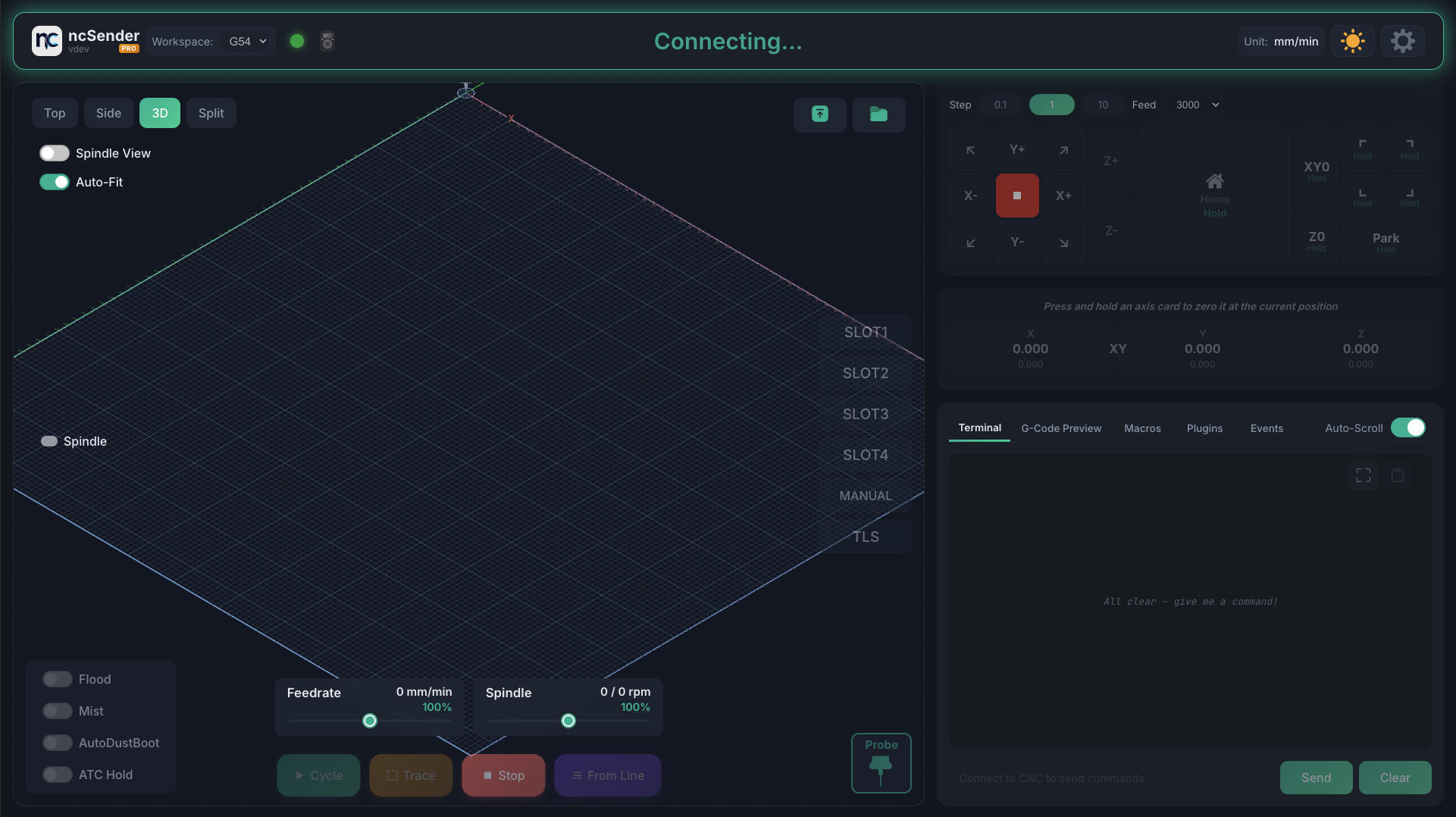
Auto-Connect
ncSender scans available serial ports automatically. If your controller isn't detected, check Settings > Connection to manually select the port and baud rate.
Connection Settings
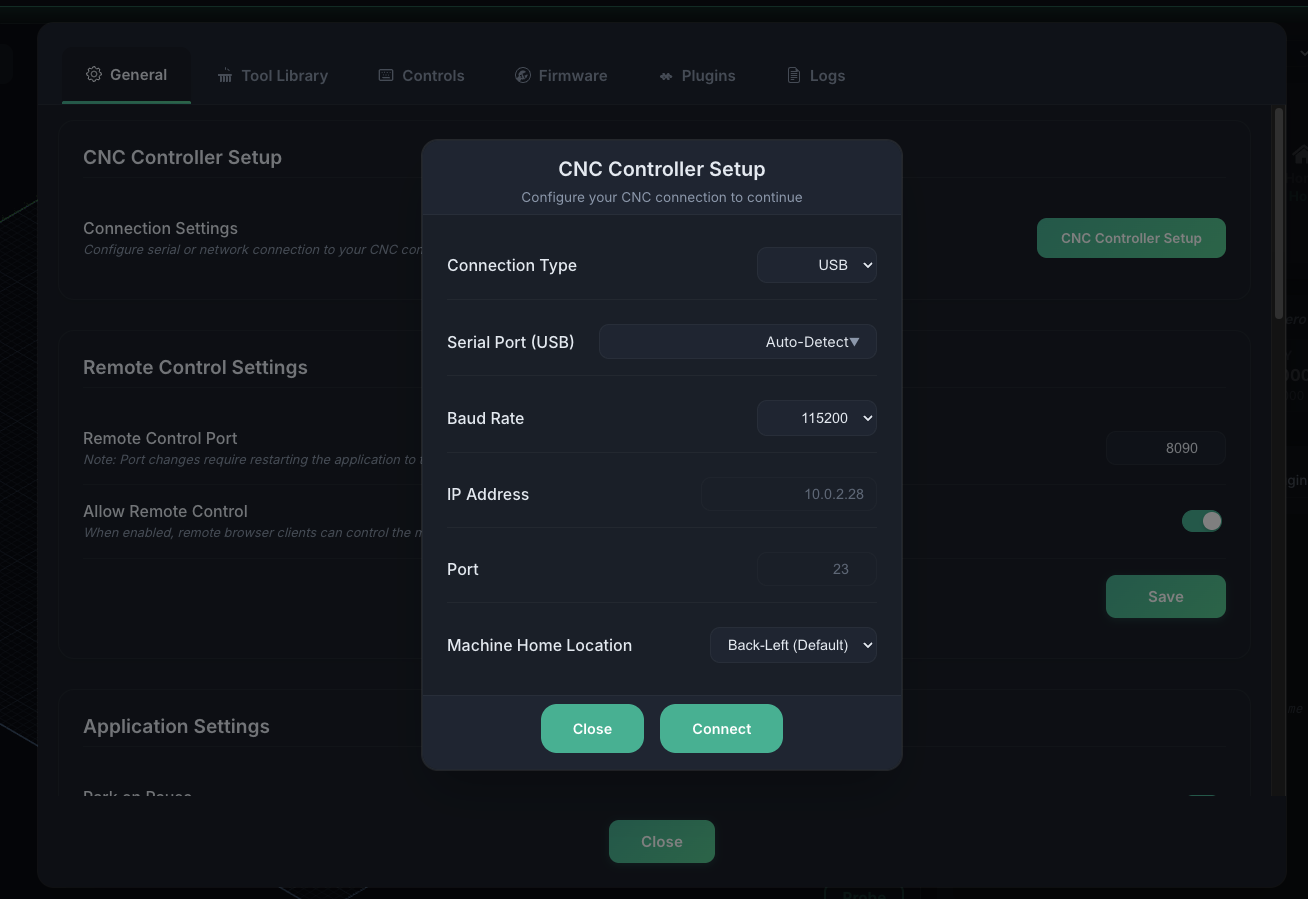
| Setting | Description | Default |
|---|---|---|
| Connection Type | USB or Ethernet | USB |
| Port | Serial port (Auto-Detect or manual) | Auto-Detect |
| Baud Rate | Communication speed | 115200 |
Supported Baud Rates
- 115200 — Standard for most grblHAL and FluidNC boards
- 230400 — Higher speed option for some boards
Verifying Connection
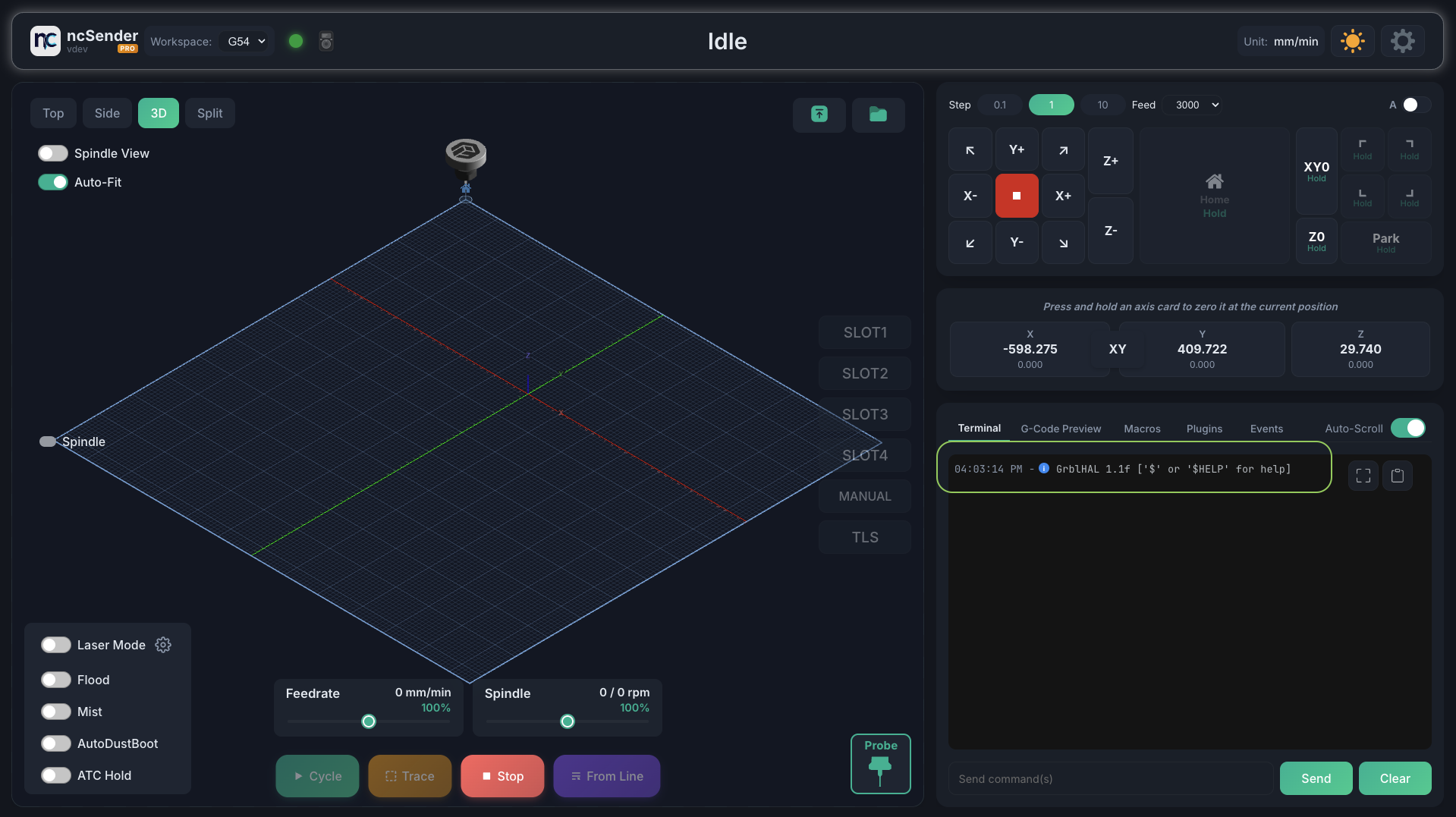
Once connected, you should see:
- Status changes from "Disconnected" to "Idle" (or "Alarm" if homing is required)
- Machine coordinates appear in the DRO (Digital Readout)
- The controller greeting message appears in the console
Troubleshooting Connection Issues
- No ports detected: Check USB cable and drivers
- Wrong device detected: ncSender filters out Bluetooth and debug ports automatically
- Controller not responding: Try a different baud rate or USB cable
- See Troubleshooting for more help